Create a Google Review Link: 2026 Guide
Create a Google review link: a guide to your profile, QR code, Place ID, templates and legally compliant review collection.
Short answer: You can create a Google review link in your Business Profile under “Read reviews” → “Get more reviews” and copy the review link there. In a desktop browser, you can also save a Google review QR code; on site, NFC stands or NFC cards with a QR code fallback are especially easy to use. Ask all genuine customers for feedback in a neutral way – without discounts, gifts, prize draws, review gating or pressure.
- The official route is through your Business Profile: Google lists “copy review link” and “download QR code” as standard review features.
- According to Google, QR codes for reviews can currently be generated only in a desktop browser, not on mobile devices.
- Customers must be signed in to a Google Account to write a review; an account without a Gmail address is possible.
- Incentives such as money, discounts, free products or services in exchange for reviews are prohibited; specifically asking only for positive reviews is also not allowed.
- The Place ID method is a technical fallback; Place IDs can change, and Google recommends updating stored Place IDs if they are more than 12 months old.
Last updated: November 2026. Applies to local businesses in Germany, especially restaurants, cafés, medical practices, retail shops, trades, hotels, agencies, branch businesses and franchise locations.
What is a Google review link and why do you need one?
A Google review link is a direct link to the review form for your Business Profile, so customers do not have to search for your business first.
Ideally, the link takes customers straight to the window where they can give a star rating and write a review. This is useful if you want to get more Google reviews without losing customers through lengthy explanations.
Typical places to use it include:
- Email signature
- Invoice or digital receipt
- Till receipt with QR code
- Table stand in a restaurant
- Reception desk in a practice, salon or hotel
- NFC card for the service team
- Follow-up after an appointment, delivery or consultation
The important distinction is between making it easy and influencing. You may make it easier for customers to access the review form. But you must not entice them with discounts, gifts or prize draws, and you should not use wording that asks only satisfied customers to leave a review. If you want to go deeper, you will find additional templates here for asking customers for a review.
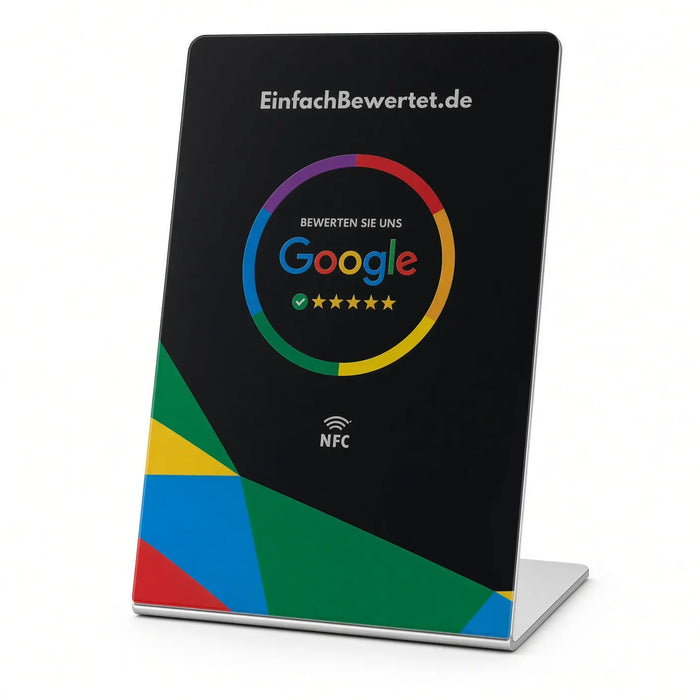
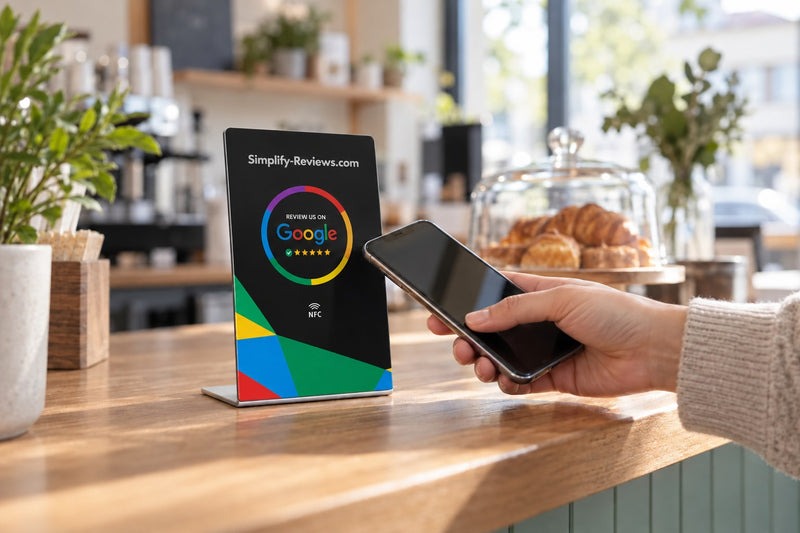
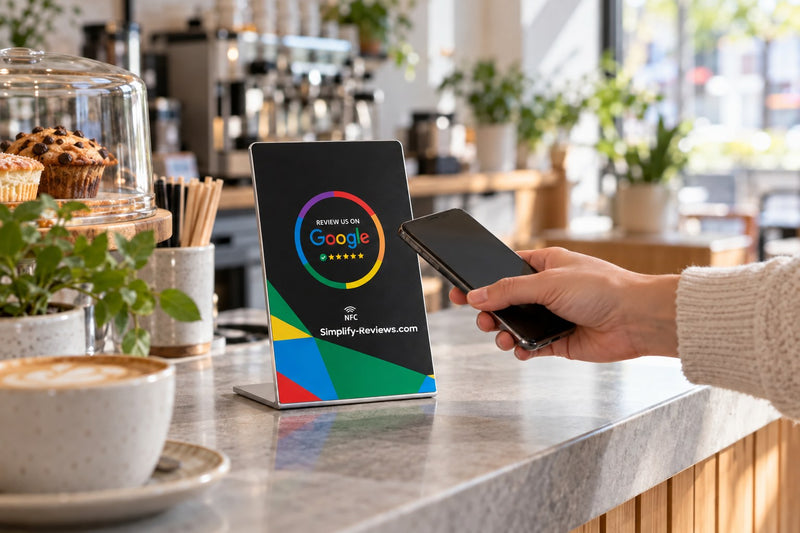
For restaurants, the review link is especially practical: guests are often ready to give feedback right after paying, when collecting an order or after a friendly service interaction. A Google review stand with NFC on the counter or by the exit reduces the effort: tap, open the review form, done – with the QR code still visible as a fallback.
How do you create a Google review link in your Business Profile?
The safest way to create your Google review link is directly in your verified Business Profile.

Here’s how to do it:
- Sign in with the Google Account that manages your Business Profile.
- Open your Business Profile.
- Select the correct location if you manage multiple branches.
- Open “Read reviews”.
- Click “Get more reviews”.
- Select “Copy” to copy the review link.
- Test the link in an incognito window or on a smartphone where you are not signed in as the owner.
Google officially describes this process for links and QR codes used to request reviews. Use this route first because the link comes directly from your profile and does not need to be assembled manually.
After copying it, check three things:
- Does the link open the correct Business Profile?
- Does the review form open, or at least the area for writing a review?
- Does the link work on iPhone and Android?
If you operate multiple locations, copy the link separately for each location. A link for the Munich branch should never point to the Hamburg branch – otherwise reviews end up in the wrong profile or customers abandon the process.
How can you create a Google review link using a Place ID?
If you do not have direct access to the Business Profile, you can technically create a Google review link using the Place ID.
The Place ID is a unique identifier for a place in Google Maps and the Google Places database. Google notes that Place IDs are available for most places, but they can change over time.
The common link formula is:
https://search.google.com/local/writereview?placeid=YOUR_PLACE_ID
Proceed as follows:
- Find your Place ID using a suitable Place ID tool or a technical query.
- Copy the full Place ID.
- Replace
YOUR_PLACE_IDin the URL with your real ID. - Open the finished link in a new browser window.
- Test it on mobile as well.
Example structure:
https://search.google.com/local/writereview?placeid=ChIJ...
Use this method as a fallback, not as your first choice. The link from the Business Profile is easier for most businesses. For branches, relocations, profile merges or name changes, you should retest Place ID links regularly. Google recommends updating stored Place IDs if they are more than 12 months old.
How do you turn the link into a Google review QR code or NFC touchpoint?
You can either create a QR code from the review link directly in your Business Profile or store it on an NFC product.
Google offers the option to save the QR code for the review link in a desktop browser; according to Google, this QR code creation is currently not available on mobile. Alternatively, you can paste the link into a QR code generator and print the code on till receipts, stands, business cards or flyers.
For printing, use these practical guidelines:
- Minimum size: around 2.5 × 2.5 cm for short scanning distances
- High contrast: dark code on a light background
- Enough white space around the code
- No glossy or strongly curved surface
- Test with at least one iPhone and one Android device before printing
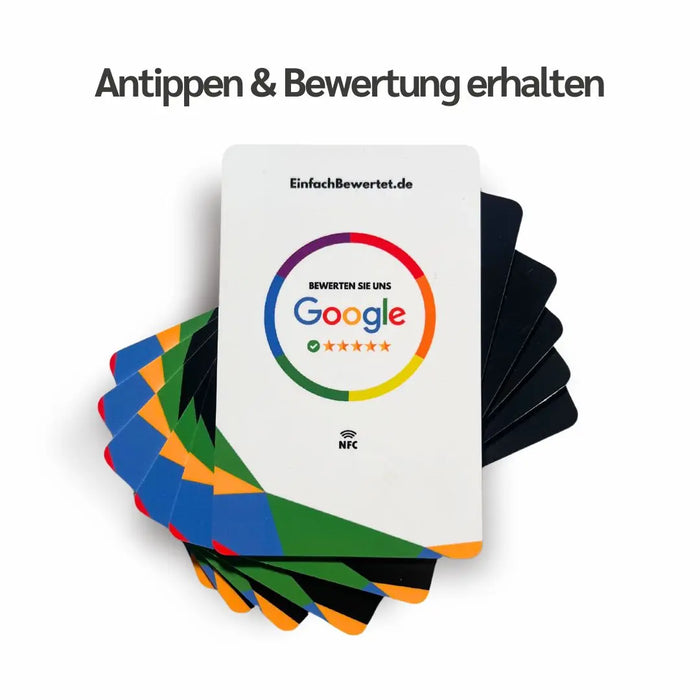
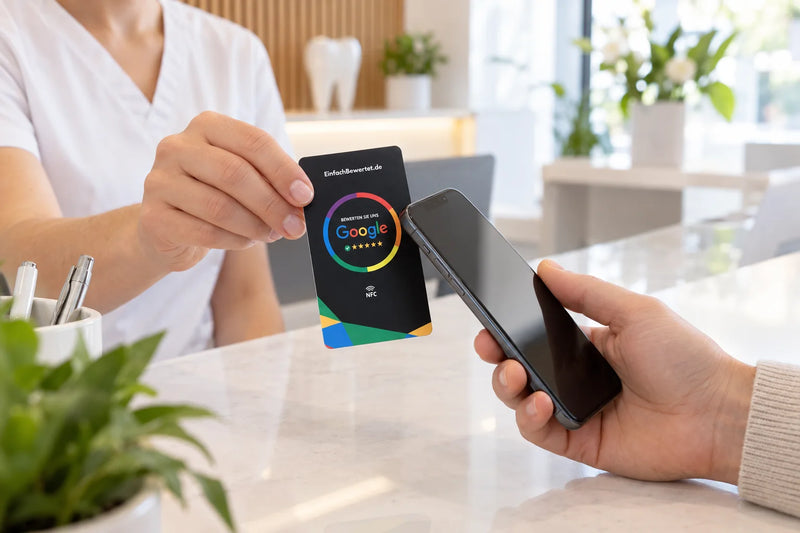
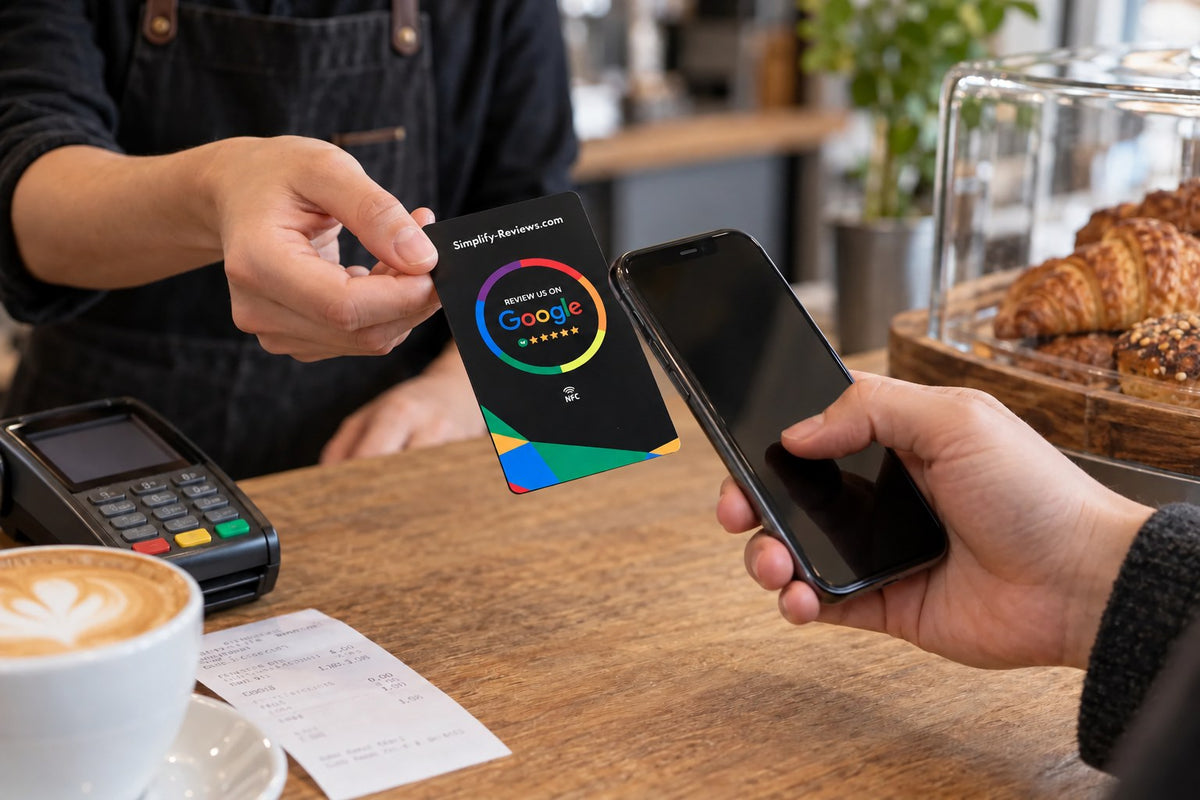
NFC removes one more step: the customer does not have to open the camera, but simply holds the smartphone against a card, stand or sticker. NFC works with virtually all current iPhones and Android smartphones; the QR code remains the fallback for older devices or disabled NFC. For teams that want to show cards at the table, reception or after service, a Google review card with NFC is a good fit.
Link, QR code or NFC compared
| Solution | Best for | What to watch out for |
|---|---|---|
| Review link | Email, signature, invoice, chat | Test the link regularly |
| QR code | Till receipt, flyer, stand, menu | Print large enough and test on mobile |
| NFC stand | Counter, reception, restaurant exit | Place neutrally, do not monitor |
| NFC card | Service team, field sales, table service | Explain briefly, then let the customer decide freely |
Where should you share the Google review link for the best results?
The link works best where customers have just completed a real experience and the effort is minimal.

For local businesses, these touchpoints are particularly useful:
- After payment: QR code or NFC stand at the counter.
- After an appointment: Link in the appointment completion email.
- After delivery or collection: QR code on the invoice or receipt.
- In the email signature: ongoing visibility in every customer communication.
- At the exit: a brief note, without watching customers while they write the review.
For restaurants, cafés and bars, a simple process usually works best: after payment, the team asks neutrally whether everything was okay, thanks guests for visiting and points to the stand. Better than “Please give us 5 stars” is: “If you’d like to share your experience, you’ll find our Google review link here.” This keeps the review voluntary, honest and uninfluenced.
For branch businesses: every location needs its own review link. Store the links in a spreadsheet, check them monthly and print location-specific QR codes. One central link for all locations almost always leads to errors.
What is allowed when collecting Google reviews?
A neutral request for honest reviews from genuine customers is allowed; incentives, pressure, fake reviews and review gating are not allowed.
Google states that reviews must be based on real experiences. Prohibited practices include paid reviews or reviews motivated by benefits in kind, discounts, free products or services in return, as well as intentionally preventing negative reviews or specifically asking for positive reviews.
In Germany, competition law also applies. The German Unfair Competition Act (UWG) prohibits, among other things, fake consumer reviews and misleading statements about the authenticity of reviews; fake consumer reviews are explicitly listed in the annex to Section 3(3) UWG.
So avoid:
- “Review us with 5 stars and receive a 10% discount.”
- “Show us your review and you’ll get a free coffee.”
- “If you were satisfied, please review us on Google.”
- “Unhappy? Write to us privately – happy? Review us publicly.”
- Team targets such as “20 five-star reviews per week”.
The last point is important: Google also prohibits requirements where employees are expected to solicit a certain number of reviews or reviews with specific content. Instead, train your team to use a neutral sentence and choose the right moment.
Email requests should also be checked legally. Advertising by electronic mail generally requires prior express consent under Section 7 UWG; there is an exception for existing customers under strict conditions, such as similar own goods or services, no objection and a clear option to object. This article does not replace legal advice; if in doubt, have your specific email and data protection situation reviewed professionally.
Which templates can you use for your review link, signature and restaurant?
Good templates ask briefly and neutrally for an honest experience, without pressure.
Use these texts with your own Google review link.
Template for an email after a purchase or visit
Subject: How was your experience with us?
Hello Ms/Mr [Name], Thank you very much for visiting us. If you have a moment, we would be grateful for an honest Google review: [Google review link]
Your feedback helps other customers make their decision and helps us continue to improve our service.
Kind regards [Name / Company]
Template for an email signature
⭐ Your opinion helps: Share your experience with us on Google: [Google review link]
Template for a restaurant, café or bar
Thank you for visiting us. If you would like to share your experience, you can review us here on Google: [QR code / NFC stand]
Template for a till receipt or invoice
How was your purchase? We would be grateful for an honest Google review: [Short link or QR code]
Template for the on-site team
“Thank you for visiting us. If you’d like to share your experience, you’ll find our Google review link here.”
Avoid phrases such as “If you were satisfied” or “Give us 5 stars”. They may sound harmless, but they can be understood as pre-filtering for positive reviews. You can read more about the risk in the article on review gating in Germany.
Which mistakes stop the review link from working?
The most common mistakes are wrong location links, untested QR codes, old Place IDs and overly pushy review requests.
Check these points if the Google review link does not work as expected:
- Wrong location: For multiple branches, the link was copied for the wrong profile.
- Tested as the owner: Do not test only in the logged-in owner account; use an incognito window or another device.
- Customer not signed in: Customers must be signed in to a Google Account to write a review.
- QR code too small: On till receipts or stickers, the code is often printed too small.
- Too little contrast: A dark grey QR code on a black background may look nice, but it scans poorly.
- Old Place ID link: After a relocation, merge or profile change, a manual link can become outdated.
- Too aggressive a request: If customers feel watched or pressured, willingness drops – and it may raise policy concerns.
If reviews do not appear after submission, that does not automatically mean the link is wrong. Google checks reviews automatically and removes content that violates policies or looks like spam. Sometimes genuine reviews are also displayed with a delay or filtered by mistake.
How can I have a negative Google review removed?
You cannot delete a negative Google review yourself, but you can report it if it violates policies.
Google says it only removes reviews that violate policies; factually accurate negative experiences are not deleted simply because the business does not like them. You can report, for example, spam, fake content, hate speech, conflicts of interest or off-topic reviews.
Proceed as follows:
- Save a screenshot of the review.
- Check which policy violation may apply.
- In your Business Profile, select “Report” next to the review.
- Enter the reason and submit the report.
- Check the status in the review management tool.
- If rejected: submit one appeal if Google offers this option.
In cases of extortion – for example, “Pay us or the 1-star reviews stay online” – Google recommends not paying, securing evidence and reporting the extortion attempt. For a structured check, the PDF guide to removing unjustified Google reviews can also help.
Our view
A Google review link is quick to create from a technical perspective. The decisive part starts afterwards: Where is the link placed, who points it out, how neutral is the wording and how regularly does it happen? In our experience, many businesses do not fail because of the link, but because there is no process. A QR code is printed once, then disappears behind the till or points to the wrong location. An email template is created but never used. Or the team asks too directly for “5 stars”, which can make customers uncomfortable.
That’s why we recommend a simple workflow: copy the link in your Business Profile, test it on mobile, place a QR code and NFC touchpoint at a real customer moment, train the team with a neutral sentence and check monthly that the link is still correct. In restaurants, the best place is rarely the menu, but the moment after payment or at the exit. In medical practices, it is more likely the appointment follow-up; for trades, the completion email after the work is done. The key remains: genuine customers, real experiences, no incentives, no pre-filtering.
— Simplify Reviews Team
How we help
We set up review links so that customers can reach the correct Google review form with as little effort as possible. Local businesses use, for example, the Google review link for email signatures, NFC and QR solutions for restaurants and franchises or a print-ready code from the free QR code generator. If you have multiple locations or are unsure which touchpoint makes sense, you can use a free consultation. The goal is not a promise of reviews, but a clean, policy-compliant process.
Frequently asked questions
How can I create a link for a Google review?
The easiest way is to create the link in your Google Business Profile under “Read reviews” → “Get more reviews”. There you copy the review link and then test it on mobile. For multiple locations, you need a separate link for each location.
How do I create a Google review QR code?
Open your Business Profile on a computer, go to “Get more reviews” and save the QR code shown there. Google points out that QR codes for reviews can currently only be generated in a desktop browser. Test the code with several smartphones before printing.
How do I get more Google reviews for my restaurant?
Make the review path visible at the right moment: after payment, at collection or at the exit. An NFC stand with a QR code fallback works well when the team points it out neutrally and guests are not watched while reviewing. You’ll find more restaurant ideas in the guide increase Google reviews for restaurants.
Am I allowed to reward customers in Germany for a Google review?
No. Google prohibits incentives such as money, discounts, free products or services for reviews. In Germany, additional competition-law risks may arise, especially with fake reviews or reviews presented in a misleading way.
Can you generate Google reviews?
If this means giving genuine customers an easy way to leave an honest review: yes. If it means bought, invented, pre-filtered or rewarded reviews: no. Work with links, QR codes, NFC and neutral templates – not manipulation.
Why doesn’t my Google review link open the star-rating form directly?
This can be due to the device, browser, login status or link type. Test the link in an incognito window and on a smartphone. If you use a Place ID URL, check whether the Place ID is still up to date.
Sources
- Google Business Profile Help: Create a link or QR code to request reviews
- Google Business Profile Help: Tips to get more reviews
- Google Maps content policies: Prohibited and restricted content
- Google Developers: Place IDs
- Google Maps Platform: Maps URL referral and writeAReviewUri
- Gesetze im Internet: German Unfair Competition Act
- Google Business Profile Help: Report inappropriate reviews
- Google Business Profile Help: Report extortion attempts involving negative reviews
- BrightLocal: Local Consumer Review Survey 2026